

Home / How To Cancel Apple Quick And Easy.
How To Cancel Apple Quick And Easy.
Are you trying to stop recurring charges from your Apple account but struggling to manage them? You’re not alone. Many users find it confusing to cancel subscriptions linked to their Apple ID—especially if they use multiple services like the App Store, iCloud, Apple Music, or other third-party subscriptions billed through Apple.
The good news: most active subscriptions can be canceled directly through your device’s Settings app under your Apple ID. Follow this guide to learn how to manage subscriptions across different devices, avoid extra fees, and protect your account.
Cancel your Apple subscriptions easily via Xpendy
Key Takeaways
- Cancel Apple subscriptions via your device’s Settings under the “Subscriptions” section.
- Cancellation steps differ by device—use the App Store on iPhone/iPad/Vision Pro, or Google Play if subscribed via Android.
- Subscriptions may remain active until the end of the billing cycle, so check bank statements to avoid surprise charges.
- Some subscriptions require contacting the service provider directly—especially if paid via Apple Pay or outside the App Store.
- Always review refund policies and keep cancellation records to protect your privacy and finances.
About Apple Subscriptions
Apple subscriptions cover a wide range of services—including Apple Music, iCloud storage, app subscriptions, and third-party services billed through Apple. While convenient, users often lose track of recurring charges or forget to cancel trial offers.
Read more about cancellation options here
How to Cancel Your Apple Subscription
Review your membership agreement
Before canceling any service, review your billing period and terms within your account settings. Knowing when charges occur lets you cancel without getting billed unexpectedly.
Contact options for cancellation
- Via device settings on iPhone, iPad, or Vision Pro (App Store).
- Via Google Play on Android if purchased there.
- By contacting third-party service providers directly if billed outside Apple.
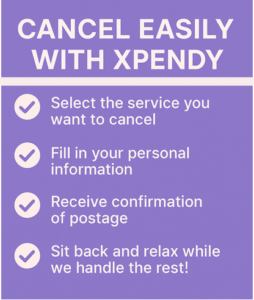
If you prefer a faster way to cancel without dealing with customer support, you can use Xpendy’s cancellation service. We’ll handle the cancellation process for you—quickly, securely, and without stress.
Additional Tips and Information
Cancellation fees
Most Apple subscriptions do not impose cancellation fees. However, since billing is based on fixed cycles, you may lose prepaid time if canceled mid-cycle.
Timing your cancellation
Cancel at least 24–48 hours before your renewal date to prevent unintended charges. Always check the billing date listed in your subscription settings.
Rejoining Apple Services in the Future
You can always restart a canceled subscription using the same Apple ID. Previous content, like iCloud data or app access, remains intact unless expressly removed by you.
FAQs
-
- How do I cancel an Apple subscription?
Go to Settings → tap your name → Subscriptions → select the subscription → Cancel Subscription. Confirm to stop future billing.
-
- Do cancelled subscriptions stop immediately?
No. You keep access until the end of the billing cycle. Billing stops after the current period ends.
-
- What if I subscribed via Google Play or Apple Pay?
Cancel subscriptions purchased via Google Play in the Play Store settings. For Apple Pay or external subscriptions, contact that service provider directly.
-
- Can I cancel on my iPhone if I subscribed on my Mac?
Yes. Apple synchronizes subscriptions across devices linked to the same Apple ID. You can cancel from any device’s Settings.
-
- How can I confirm my subscription cancellation?
You’ll receive an email confirmation from Apple. You can also verify the subscription status in Settings → Subscriptions to ensure it’s listed as expired or cancelled.


