

Home / How to Cancel Canva: Stop Your Subscription Step-by-Step
How to Cancel Canva: Stop Your Subscription Step-by-Step
Trying to cancel your Canva subscription but unsure where to begin? You’re not the only one. Managing subscriptions can be tricky, especially when you’re navigating through account settings or searching for cancellation options.
It’s important to note: cancelling a Canva plan does not automatically trigger a refund. Instead, it simply prevents future billing once your current subscription period ends.
This guide walks you through the entire process—from accessing your billing settings to managing cancellations, refunds, trials, and support options. Let’s make cancelling your Canva membership simple and stress-free.
Key Takeaways
- You can cancel your Canva plan by logging in, navigating to Billing & Plans in your settings, and selecting Cancel plan.
- Cancelling your subscription stops future charges but does not automatically refund your last payment.
- Canva allows you to pause your annual subscription for up to three months—if you’re within two months of renewal.
- Need help or want to request a refund? Use Canva’s Help Center to contact customer support.
- The cancellation process works on both desktop and mobile platforms.
How to Cancel Your Canva Subscription
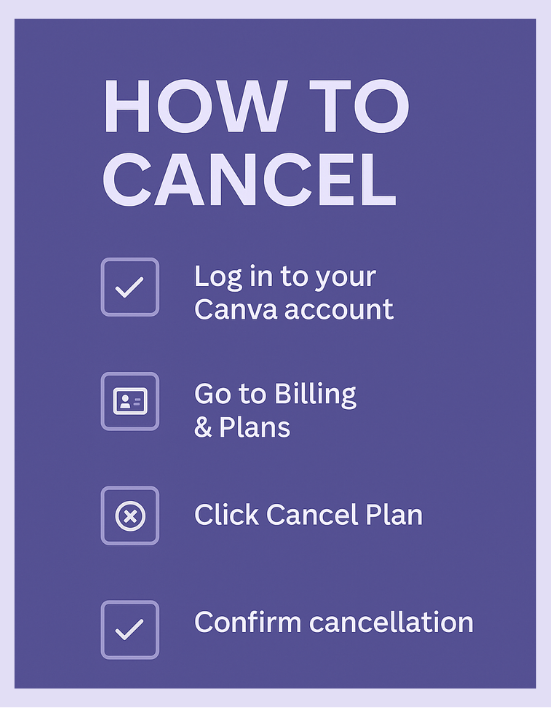
Here’s how to cancel your Canva subscription in just a few steps:
Log in to Your Canva Account
Head over to the Canva website and log in using your email and password. Once you’re in, look for your profile icon in the top right corner. Click it to access your account menu.
Access Your Account Settings
From the dropdown, click on Settings. This is where you’ll find your account management tools. Select the Billing & Plans section to view all subscription and payment details.
Navigate to ‘Billing & Plans’
Inside Billing & Plans, you’ll see your current plan, payment info, and any upcoming charges. Look for your active subscription and locate the More actions button next to it.
Click on Your Active Subscription
Clicking your active plan reveals more management options. This is where you’ll be able to cancel, pause, or make other changes to your subscription settings.
Select ‘Cancel Plan’
Find and click the Cancel plan button. Canva will ask for confirmation. This stops your subscription from renewing in the next billing cycle. You’ll still have access until your current term ends.
Confirm Cancellation
To complete the process, confirm your cancellation when prompted. Canva may ask for feedback or offer to pause instead—make sure to click through to finalize.
Remember: cancellation does not mean you’ll receive a refund automatically. That’s a separate process you’ll need to request manually.
Pause or Cancel Your Canva Subscription
If you’re on an annual plan and your renewal is less than two months away, Canva gives you the option to pause your plan instead of cancelling. You can pause for up to three months without losing your designs or account access.
To do this:
- Go to Billing & Plans under Settings.
- Select your subscription and choose Pause Plan if eligible.
This way, you won’t be charged during the pause period—and you can resume anytime within the three months.
How to Cancel Canva on Mobile
Cancelling your Canva plan on mobile works similarly to desktop:
- Open the Canva app and sign in.
- Tap the Menu icon (usually three horizontal lines).
- Select Settings, then tap Billing & Plans.
- Tap your active subscription and go to More actions.
- Tap Cancel Subscription and follow the on-screen prompts.
Just like on desktop, cancelling stops future billing but doesn’t provide a refund unless requested separately.
Requesting a Refund from Canva
If you recently paid for a Canva subscription and want a refund, you must submit a request to Canva’s customer support. Here’s how:
- Visit the Canva Help Center.
- Search for “refund request” and follow the article instructions.
- Use the contact form or email option to reach out.
Canva may approve refunds on a case-by-case basis, especially if the request comes shortly after a new billing period starts.
Need Help? Contact Canva Support
If you’re facing issues with your account, billing, or cancellation, Canva offers support through their Help Center. You’ll find:
- Step-by-step articles
- Contact forms for more complex issues
- Email support and sometimes live chat
Log in to your Canva profile to access personalized support options based on your subscription and device.
Cancel Canva the Easy Way—With Xpendy
At Xpendy, we understand how confusing it can be to cancel online subscriptions. That’s why we offer a faster, easier way to cancel services like Canva—no stress, no back-and-forth with customer support. Fill in a simple form, and we take care of the rest.
Cancel your Canva subscription now via Xpendy and start saving today!
Canva Subscription Cancellation FAQs
- How do I cancel my Canva subscription?
Log in, go to Settings → Billing & Plans, then click on Cancel plan next to your active subscription. Confirm the cancellation when prompted. - Will I receive a refund?
No, not automatically. You’ll need to request a refund separately through Canva’s Help Center if you’re eligible. - What happens after my free trial ends?
If you don’t cancel your trial, Canva will charge your payment method once it expires. Cancel beforehand to avoid charges. - Can I cancel from my phone?
Yes. Use the Canva mobile app to access Settings → Billing & Plans, then tap Cancel Subscription. - How can I get help from Canva?
Visit the Canva Help Center to submit support requests, request refunds, or browse troubleshooting articles.


